ClickUp 4.0 has been available since December 2025 and definitively replaced its predecessor this March. This isn't just a minor facelift where three buttons were moved slightly; it's a complete paradigm shift. ClickUp's goal is to integrate tasks, documents, chat messages, calendars, meeting notes, and AI functionalities into a single platform. The only question is whether this will actually help in practice, or if it will just be another place where 'final_final_final' documents can get lost. Here's what's new in ClickUp 4.0 and how you can leverage its benefits!
.png)
What is ClickUp 4.0, and what does a convergent workspace mean in practice?
The keyword for the new version is convergence. This means that the system doesn't try to operate as a collection of separate functions, but rather creates a unified workspace.
#m1-y#ClickUp 4.0's main promise can be summarized in four words: fewer app switches, more efficient work.##
ClickUp aims to innovate in the task management app market by offering an alternative to the fragmented work organization common in many companies.
It can bring significant progress primarily to teams where work has previously been scattered across too many separate tools and conversations.
We all know examples of this, but here's a common scenario for fragmented work:
- project descriptions and meeting notes are on Google Drive,
- tasks are in ClickUp,
- discussions are on Slack,
- deadlines and meetings are in Google Calendar,
- decisions and client feedback are in email,
- final files are on someone's computer,
- status is in someone's head,
- and AI tools seem more like extra features available on a separate interface rather than daily assistants for administration.
In contrast, ClickUp 4.0's goal is to these elements should be connected within a single interface. For example, an AI note can be generated from a meeting scheduled in a ClickUp Planner, which can then become a task with an assigned owner and deadline, and thus the tasks return to the Planner and Inbox.
And this sounds good, especially to anyone who has ever searched for urgent information on Slack, in emails, on Google Drive, in an old Doc, and finally found it in a Messenger message they sent to themselves.
Let's go through the new features, as usual, accompanied by practical examples.
ClickUp 4.0 Global Navigation: Fewer Clicks, More Customization Options
One of the most noticeable changes is the new navigation bar, the so-called Global Navigation appearance.
This is the left-hand navigation bar, where we could previously see the various elements of the Workspace – but from now on, we can customize even more flexibly what appears and how, according to our own needs. Anyone who has worked in a more complex ClickUp workspace knows that navigation is not an aesthetic issue: if a system has 18 Spaces, 64 folders, and 240 lists, every extra click brings one closer to a complete nervous breakdown.
In the new navigation, therefore, each user can configure it in a way that suits them, which of the following menu items appear on the left sidebar and in what order:
- Home - i.e., the user's "personal homepage" for a quick overview of tasks, notifications, and important work,
- Spaces Sidebar - where we can navigate within individual Spaces and quickly access the project structure,
- Chat - for accessing conversations within projects and between colleagues,
- Planner - for jointly planning tasks, meetings, and calendar events,
- AI Hub - for central access to ClickUp AI features such as summaries, meeting notes, and AI-powered searches,
- Teams Hub - for more transparent management of teams, roles, and workloads,
- Docs Hub - for organizing documents, meeting notes, process descriptions, and internal knowledge bases,
- Dashboards Hub - for visual tracking of reports, performance indicators, and project statuses,
- Whiteboards Hub - for accessing whiteboards used for brainstorming, flowcharts, and visual planning,
- Forms Hub - for managing forms used to collect internal requests, customer inquiries, or leads,
- Clips Hub - for organizing screen recordings and short video explanations,
- Goals - for tracking targets, business or team-level goals, and milestones,
- Timesheets - for reviewing work hours, expenditures, and time-based billing.
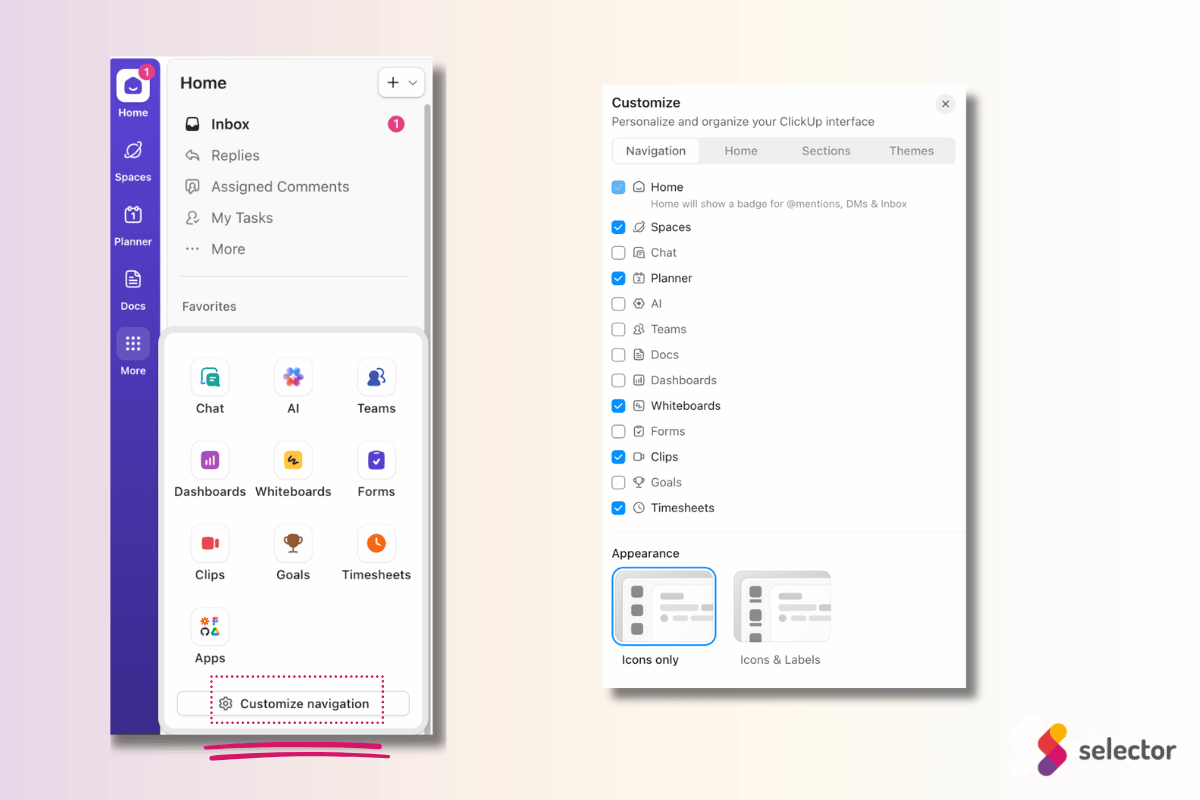
#m1-p#However, the new navigation will only be truly useful if you don't leave it at its default settings, but instead customize it to your daily workflow.##
For example, if – based on our own experience – you work at a marketing agency, and you're simultaneously managing social posts, PPC tasks, client feedback, and reporting deadlines, you don't need to navigate through the entire hierarchy every time – simply arrange the elements you use daily upfront.
A project manager might pin the Planner, Inbox, and Dashboard, while a content creator would likely prefer to keep Docs Hub, content calendar views, and Chat close at hand.
Home Sidebar and Inbox: Finally, a clearer start to your workday
As part of Global Navigation, the Home Sidebar in ClickUp 4.0 has become a central element for daily work.
On the ClickUp Home Sidebar, you can access the following menus:
daily notifications (
- Inbox),replies to your comments (
- Replies)comments assigned to you (
- Assigned Comments),
- chat messages (Chat Activity),
- our tasks by deadline and other filters (My Tasks)
- our drafts and sent messages, comments (Drafts & Sent)
- our posts, which can be announcements, ideas, updates, etc. posted in the chat (Posts)
- all ClickUp Chat channels (All Channels)
- and all Spaces and/or Tasks within the Workspace (All Spaces, All Tasks)
#m1-p#But of course, from now on, we can arrange these according to our needs, and even hide them.##
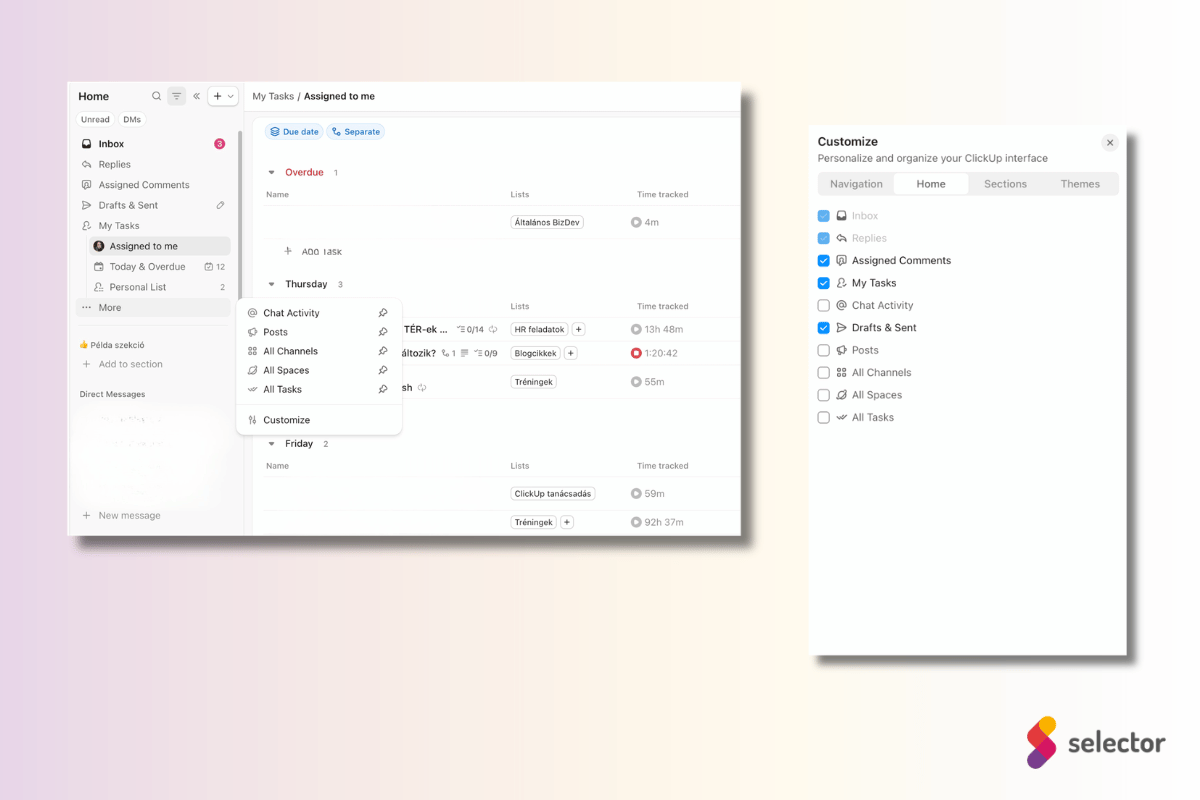
Similar to Global Navigations, the most useful menus here will depend on the company's work style, specific roles, and individual preferences.
The previous Home view is now called “My Tasks’”, and when expanded, it provides separate, automatically created views for tasks assigned to us (Assigned to me), as well as urgent, due, or overdue tasks (Today & Overdue).
Not new, but it has received a more prominent place, the Personal List , which serves to manage tasks separately from those created in Spaces, "privately," tasks that only we want to see (for example, our shopping list could move in here - although we don't encourage anyone to do that for now, it's better off away from work-related tasks.)
ClickUp Favorites reimagined: sections have arrived
Previously, we could set tasks aside at the bottom, on the "tray," using the Minimize task function, while almost any important element of the workspace (such as spaces, folders, lists, or views, as well as tasks) could be pinned to the top bar or sidebar, in the Favorites section.
This has been simplified in the new system: essentially, the favorite button remains, but now we can decide where we want to pin the given item for quick access. We can pin it to the sidebar or the top, and for tasks, even to the bottom bar. It's also new that when customizing Global Navigation, we can create separate sections on the Sections tab to categorize our favorites.
Thus, favorites are no longer a single large, catch-all 'I'll quickly find it from here' collection point.
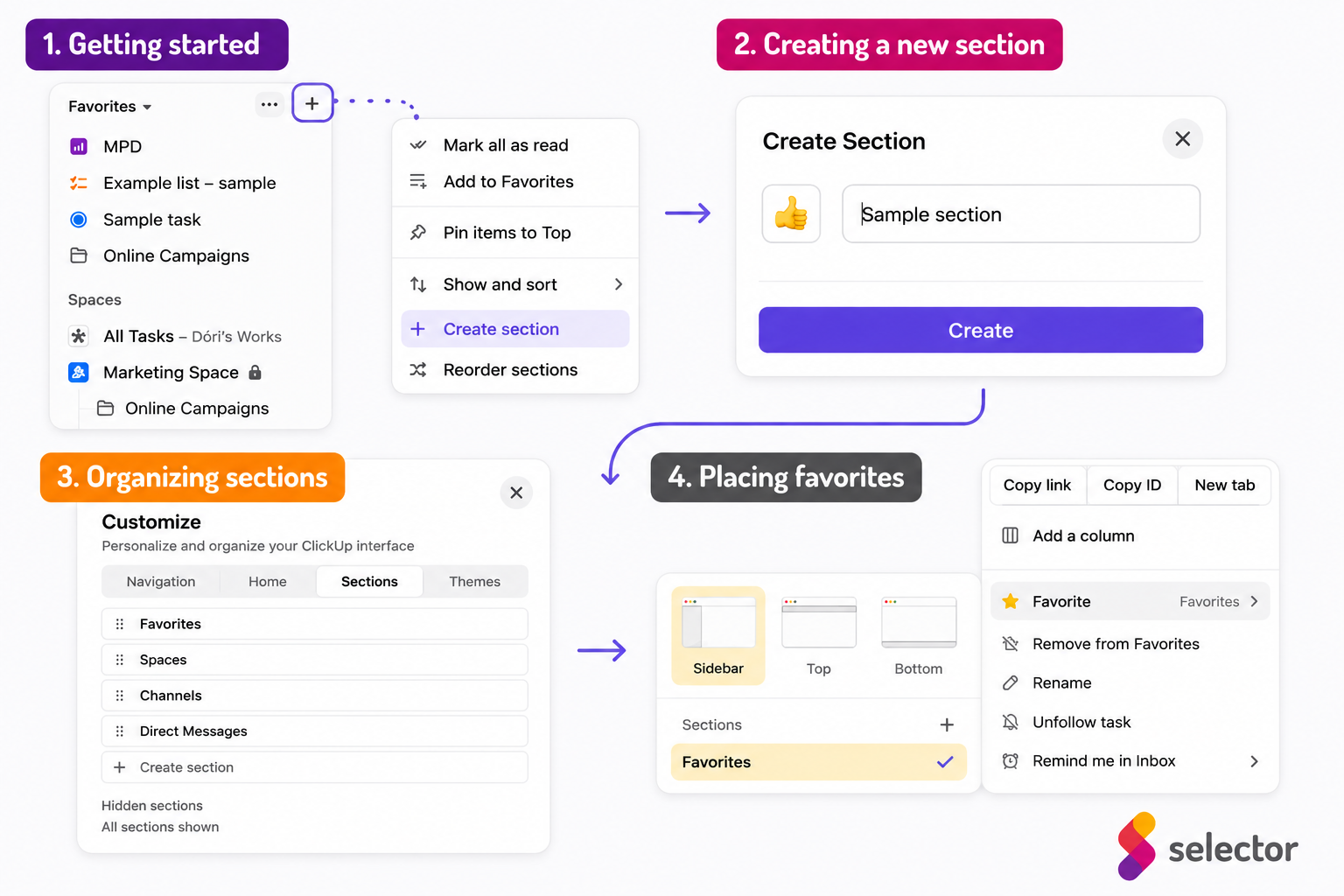
Favorites can be categorized, for example:
- by frequency or deadline ("daily tasks" or "weekly checks")
- but we can also organize them by area ("internal admin," "client tasks," or "reports")
- and it also works well if client or project by we categorize our favorites.
#m1-p#ClickUp doesn't dictate what we achieve where; instead, we can build the system that allows us to quickly find exactly what we're looking for.##
ClickUp Chat: because conversation is part of the work
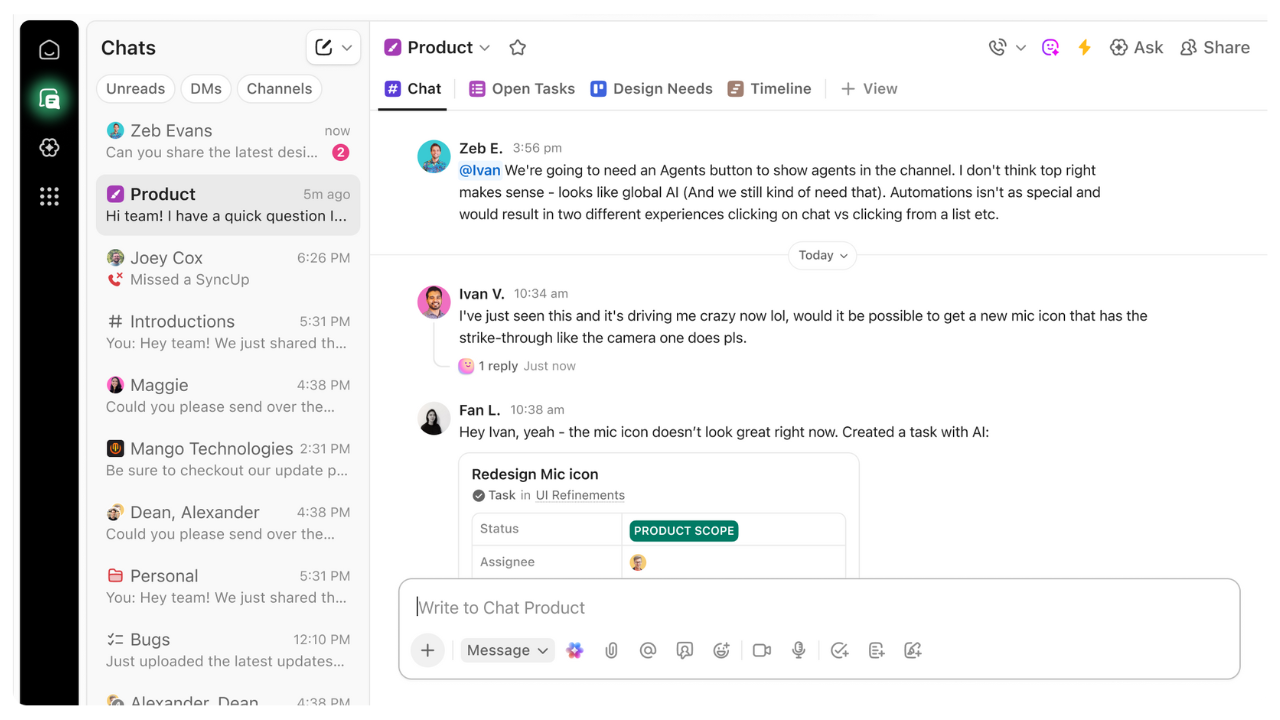
A significant new feature in ClickUp 4.0 is the enhanced built-in Chat.
The goal here is also clear: avoid discussing work in a separate chat system, only to then try and reconstruct the actual tasks from those conversations within a separate project management system.
With ClickUp Chat, you can:
- communicate in channels by project or team,
- send direct messages to colleagues,
- create tasks from messages or link them to existing tasks,
- save messages for later,
- send scheduled messages,
- summarize conversations using AI.
The latter can be particularly useful after longer discussions, because let's face it: when someone writes "so we'll do this like this" at the end of an 84-message thread, it doesn't always mean everyone knows exactly what "this" and "like this" refer to.
Another practical example of Chat's benefits is when the marketing team discusses creatives via chat before a campaign launch.
#m1-p#Information discussed in chat can have a vastly different impact depending on how easily elements of the conversation can be transferred to the project management interface.##
Let's say that during the conversation, it becomes clear that:
- a 9:16 video version is still needed,
- the message needs to be modified,
- the client is waiting for the preview until Friday,
- and no conversion event has been set up in the ad account yet.
Instead of this conversation becoming a chat archive or a daunting task monster kept only in your head, ClickUp Chat allows you to turn important points into tasks with two clicks, complete with an assignee and a deadline.
This is the difference between "someone will take care of it" and "Kate will take care of it by Friday 12:00 PM."
Planner: calendar, tasks, and meetings in one place
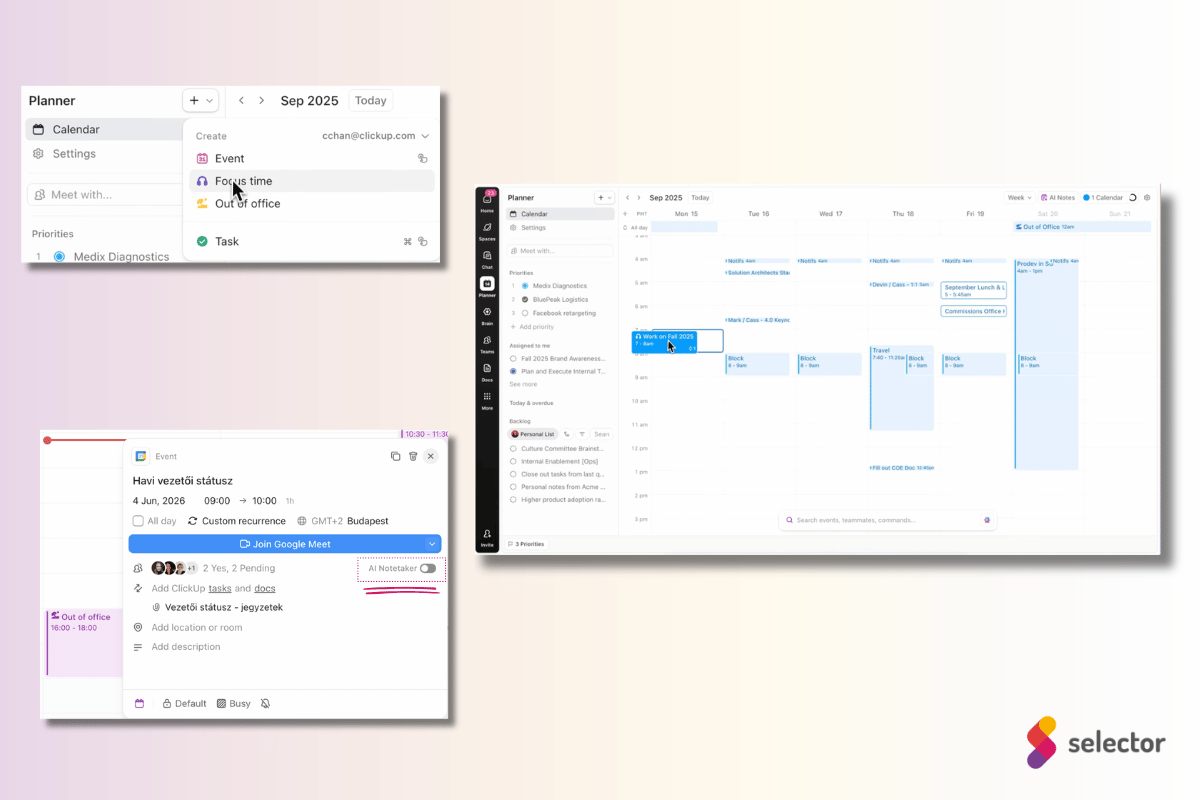
ClickUp's new calendar interface, called Planner, helps ensure that your task list isn't just an optimistic wish list, but an actual, schedulable work plan.
Is this a familiar situation: your to-do list shows 11 urgent tasks today, your calendar has 6 meetings, and your body suggests you'll have at most 3 coherent thoughts after lunch?
ClickUp Planner is an effective remedy for the unrealistic work planning that arises from such situations, allowing you to visualize everything in one place.
In Planner, you can schedule or join meetings (connected to your calendar app) – but the best part is that you can immediately drag your ClickUp tasks, which automatically appear next to the Planner, into the calendar to see when they fit into your day. What's more, with an AI subscription, you can even automate this.
And this makes a big difference, because it shifts the focus from the question "By when do I need to do this task?" to the much more important "When can I actually do this task?" question.
As a bonus, if you've subscribed to the relatively affordable ClickUp AI Notetaker, you can add it to meetings with one click at the moment of scheduling.
We'll write a bit more about this in the next section.
#promobox-newsletter###
AI Notetaker and ClickUp AI: when meetings finally don't end with "I'll send it later"
One of the more exciting directions for ClickUp 4.0 is the deeper integration of AI into our workflows.
#m1-y#Important: ClickUp AI features are still accessible by purchasing a separate package (add-on) after the trial period expires.##
You can choose from several AI tools serving different purposes (Super Agents, AI Brain, etc.), but among these, the one that is perhaps universally most useful for any team is the AI Notetaker.
With the AI Notetaker, you can create automatic meeting notes that appear as a ClickUp Doc a few minutes after the meeting ends. These notes not only include the full meeting recording and transcript (even in Hungarian!) but also the decisions made and tasks assigned during the discussion, along with their respective owners.
This can be especially useful for those who attend many meetings and have felt that while everyone understood everything at the end of a meeting, by the next morning, all that remained was, “there was something about that thing that someone needed to take care of sometime.”
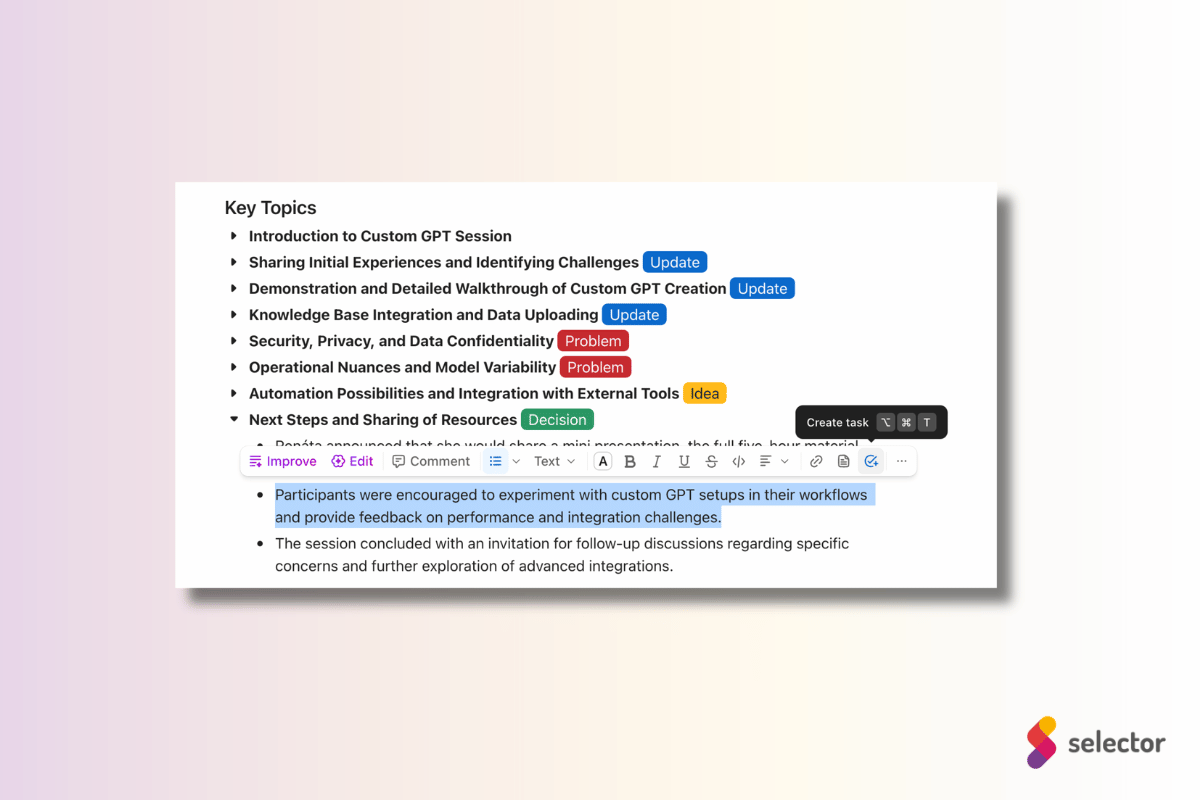
The AI Notetaker and ClickUp AI can help with:
- creating meeting notes,
- quickly retrieving tasks formulated during meetings,
- summarizing documents,
- reviewing longer conversations,
- clarifying task descriptions,
- and accelerating repetitive administrative work.
#m1-y#However, it's important that AI doesn't replace good processes here either.##
If the workspace is chaotic, task names are inconsistent, assignees are missing, and deadlines are more like decorative elements, then AI won't work miracles either.
#m1-p#ClickUp AI provides the most value when you use it not as a separate "smart feature," but as part of your daily workflow.##
New task view: clearer tasks, less information clutter
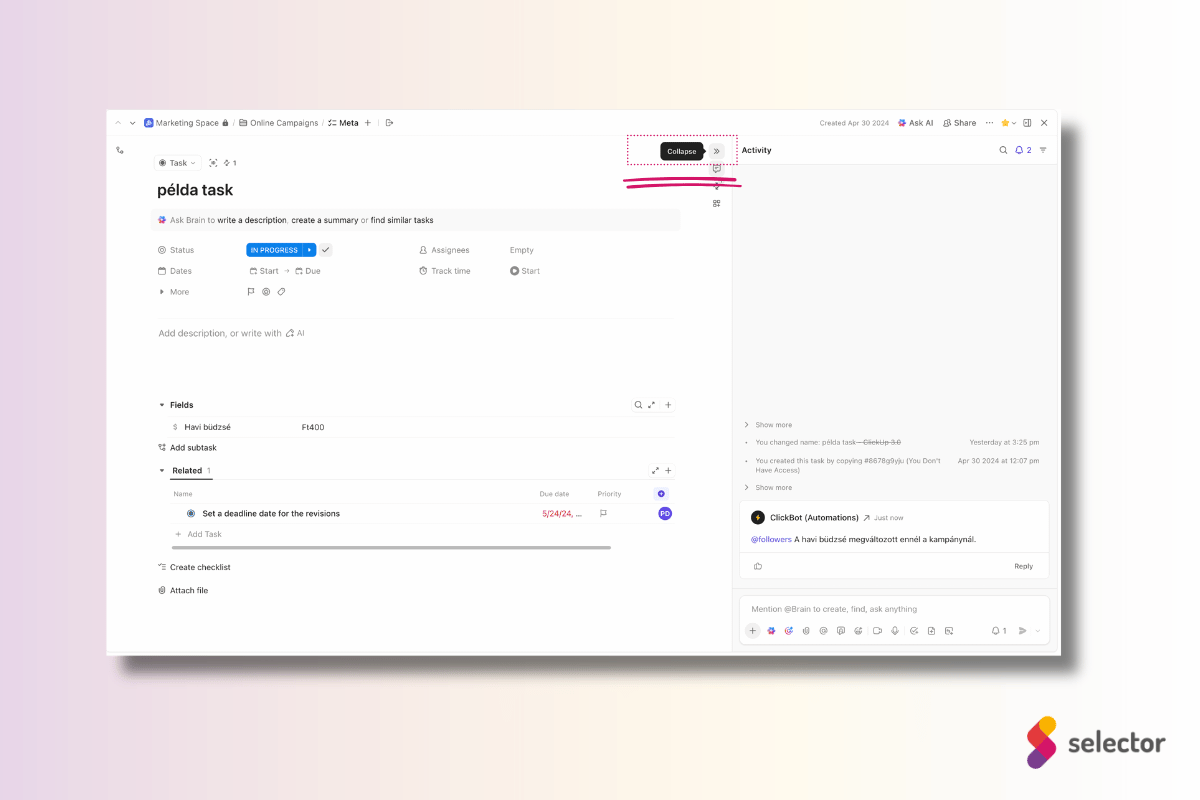
In ClickUp 4.0, the task view has also been revamped. In the task view, more emphasis is placed on collapsible sections, as well as the right-hand sidebar, where comments, activities, integrations, and relationships can appear.
This might sound less spectacular than AI or Chat at first, but it also makes a big difference in daily use.
A well-structured task often includes:
- description,
- status,
- assignee,
- due date,
- subtasks,
- attachments,
- comments,
- related documents,
- dependencies,
- custom fields,
- checklists,
- and so on. :)
If all this information is dumped on the user at once, it won't result in project management, but rather a digital pile of clutter. A good task view isn't good because it shows everything, but because it makes the right information visible at the right moment.
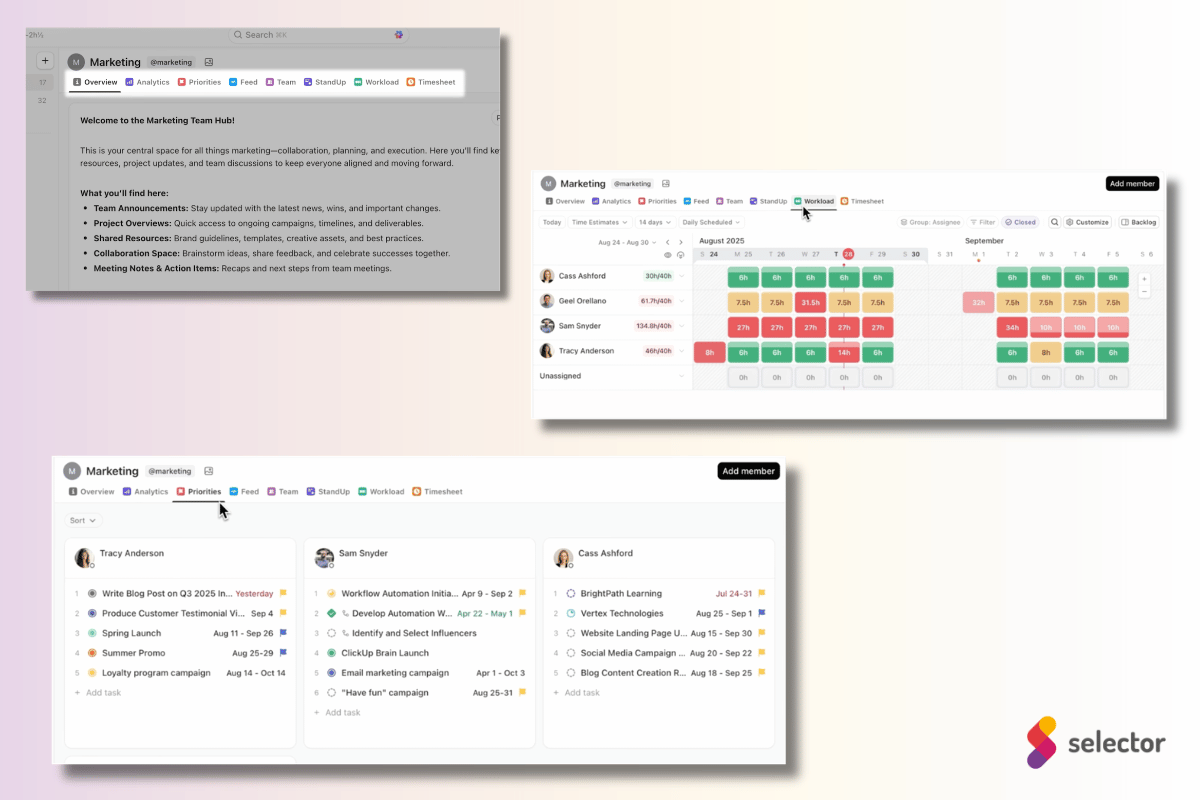
Teams Hub: Deeper insight into team work
This view was previously missing from ClickUp, and many welcomed its arrival.
The Teams Hub serves as a valuable resource for company or team leaders who want to know not only what their own team is working on, but also what every other department is doing and how much capacity they have.
The Teams Hub features separate tabs displaying:
- how teams are structured and who belongs to them,
- what individual team members and teams are working on,
- current tasks and priorities,
- and who is overloaded,
The Teams Hub can be particularly useful if the company has outgrown the stage where everyone roughly knows who is working on what.
While this might still work in a 5-person team, in an organization of tens or hundreds of people, questions like these easily arise:
- "Is this for marketing or sales?"
- "Who is handling this client?"
- "Which graphic designer is working on this campaign?"
- "Why are three people working on the same task, and no one on the other?"
- "Who worked on this task that no one dares to delete?"
#m1-p#The Teams Hub is thus primarily not an additional admin interface, but a tool that facilitates oversight at both leadership and team levels.##
Mobile ClickUp 4.0: more features on the go
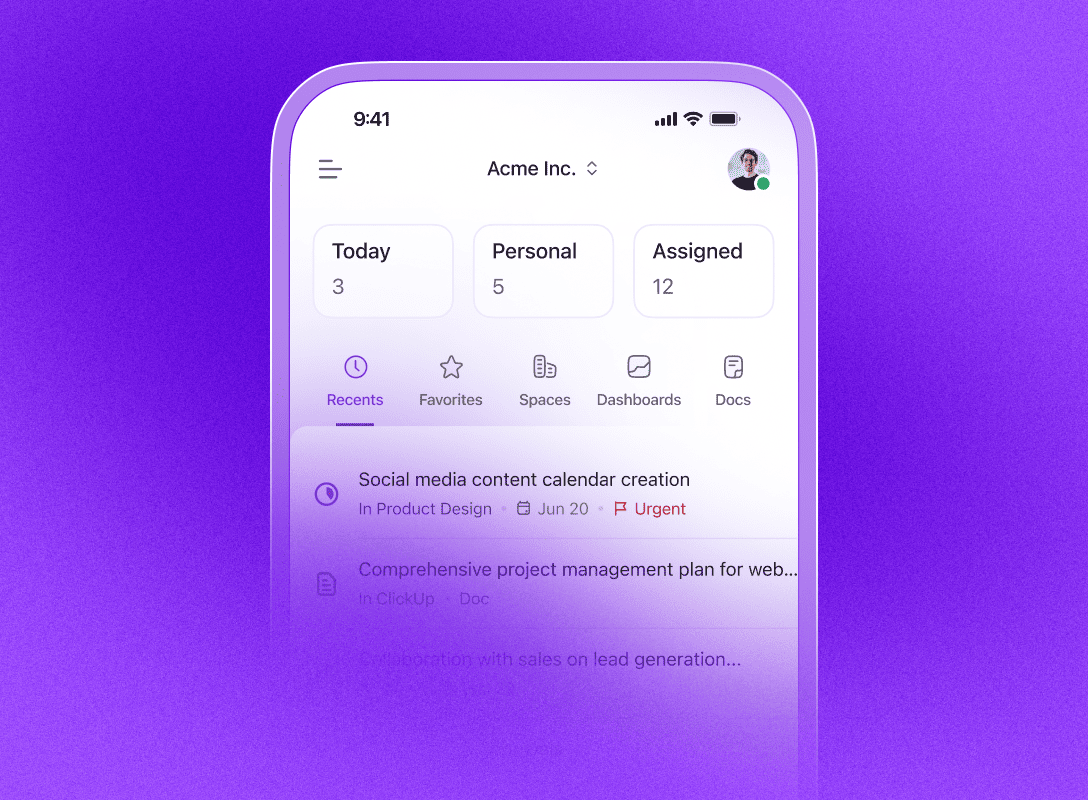
The ClickUp 4.0 interface is also available in the mobile app.
The mobile experience emphasizes a more unified layout, My Tasks, and the More menu, which provides access to additional features like Clips, Docs, and ClickUp AI.
This is important because many people don't just use ClickUp at their desk: some check it between meetings, some tick off quick tasks on the go, and some at 9:43 PM 'just quickly check' what they're starting with tomorrow - then suddenly reorganize half their week. (We don't recommend it, but we understand.)
#m1-y#Mobile ClickUp is truly useful when you use it for quick capture and review, not for full workspace organization on the tram.##
The ClickUp mobile application can be particularly useful in the following cases:
- for quick commenting,
- checking deadlines,
- for quickly changing task status,
- for managing urgent notifications.
For example, after a client meeting, you can record the most important follow-up tasks in the elevator, or write a brief summary for the team in a chat, which can then become a task later. This is much better than keeping it in your head until you get back to the office, where, of course, at least three other things are already waiting for you.
What do users say? ClickUp 4.0 isn't love at first click for everyone
ClickUp's official communication understandably emphasizes convergence under the motto 'no need for another app now,' quality, and a unified workspace. However, user feedback paints a more nuanced picture.
Based on our own experiences, comments from our ClickUp consultant colleagues, and international user forums, several recurring themes emerge regarding ClickUp 4.0:
- many like the 'all-in-one' concept, but at the same time they still use several external tools alongside it, because ClickUp cannot fully replace them (we're looking at you, Excel and Google Sheets),
- some say the new layout is unusual at first or less intuitive, and initially significantly slows down work due to extra clicks spent searching;
- some (and we too) occasionally experience slowdowns due to version updates, and even less frequently glitches and bugs, although these are indeed becoming rarer,
- and many highlight that ClickUp, with its convergent operation, has become more complex, and only works truly well if the processes are also in order.
However, the disadvantages are outweighed by the advantages: most people quickly adapted to the new interface, and the deservedly popular Planner and Teams Hub interfaces, as well as the AI features, played a significant role in this.
ClickUp 4.0 tips: how to best start using it
The most important takeaway is that ClickUp 4.0 will only be effective if we consciously set it up, rethink the workspace logic, and train the team on the new workflow.
#m1-p#ClickUp 4.0 can provide a strong foundation, but efficiency still depends on well-established processes.##
If you're just getting started with ClickUp 4.0, it's not advisable to reorganize everything at once.
Projects like 'let's tidy up the entire workspace today' often end with everyone exhausted after three hours, and the system even more chaotic than before.
It's better to proceed step by step. Our previous article, written during the 3.0 system era, can help with this – and since the hierarchy and basic elements are unchanged – it still serves as a good starting point for setting up your own system: Designing an effective ClickUp workspace: from planning to implementation
1. Streamline the navigation
First, configure what should always be readily accessible.
#m1-y#Don't pin everything, otherwise the new navigation will also become a cluttered digital desk.##
For example, the ClickUp Global Navigation elements we recommend are:
- Inbox,
- Planner,
- Chat,
- Docs Hub,
- Dashboards,
- the Spaces or Lists you use daily.
2. Review your existing workspace hierarchy
ClickUp 4.0's convergent functionality is most effective when your hierarchy isn't completely arbitrary.
It's worth checking if the following are true in your ClickUp Workspace:
- Spaces logically divide work into different areas,
- there are no duplicate folders, lists, or tasks,
- there are no outdated Lists,
- task names are consistent,
- statuses consistently align with the specific workflow.
3. Establish Chat Rules
If you plan to use ClickUp Chat, it's important to decide what belongs in chat, what should be a task, and what should be a document.
For example, you can assign different types of information to various workspace elements as follows:
- for quick questions: Chat,
- for delegating tasks with an owner and a deadline: Task,
- For transferring longer knowledge bases or processes: Doc or Clips,
- For communicating decisions or approvals: a comment on the specific task.
4. Use the Planner for actual capacity planning
Allocate time for important work, especially for tasks that require deep focus.
Such focus tasks might include the following:
- strategy development,
- any in-depth writing activity (article, analysis, report, etc.)
- performing technical configurations,
- investigating roadblocks,
- internal process improvement.
5. Introduce AI features gradually
The goal shouldn't be to 'use AI,' but rather to reduce specific administrative pain points with it.
Good starting points for introducing AI could be the following areas:
- generating meeting notes,
- summarizing long comment threads,
- refining task descriptions,
- creating document drafts,
- extracting action items from a note or meeting transcript.
#m1-y#When introducing ClickUp 4.0, the goal isn't to immediately transform everything, but to reduce the most common daily friction points.##
Who will truly benefit from ClickUp 4.0?
ClickUp 4.0 can be especially valuable for teams that handle a lot of information across multiple platforms simultaneously – for example:
- marketing agencies,
- sales and account teams,
- companies utilizing project management,
- content creation and creative teams,
- developer or product teams,
- organizations where many tasks are generated from frequent meetings,
- companies that are already using too many disparate tools.
ClickUp 4.0 aims to address this: instead of the team constantly having to connect scattered information, the system should help organize it. Of course, ClickUp won't write that status update for us that we've been putting off since yesterday, but at least we'll have a better chance of knowing where to find the necessary information.
Summary: What does ClickUp 4.0 change?
ClickUp 4.0 has clearly taken a huge step towards convergence, AI integration, and customizability – not just in terms of features, but in rethinking the entire workflow.
This further reinforces that ClickUp truly shines when you don't just input tasks, but consciously build your team's daily workflow within it.
If you're already using ClickUp, it's worth exploring how you can leverage the new features of 4.0 to boost the efficiency of your current processes.
If you're just now considering implementing a (new) project management system, ClickUp 4.0 provides a great opportunity not only to choose a tool, but also to plan for a renewed, more conscious way of working.
#promobox-en#If you'd like to structure your ClickUp workspace more clearly, or you're unsure how best to implement the new features, we'd be happy to help.##






.jpg)
.png)