Get rid of nerve-wracking administration and manage more efficiently! If, as a leader, you constantly find yourself investigating project statuses and team roadblocks instead of making important decisions, it's time to get acquainted with ClickUp's automations. In this article, we'll introduce some that you can confidently implement today – even if you're just starting to learn ClickUp.
.png)
What is ClickUp, and what are automations?
ClickUp is a (nearly) all-purpose project and task management platform designed to be fully customizable – whether you're tracking daily tasks, managing complex teamwork, or creating company reports. For us at Selector, this software is the alpha and omega of our daily work: as a marketing agency this is where we coordinate our multi-channel campaigns, track who is doing what and how they're progressing, and manage our CRM and HR databases.
The automations are ClickUp's secret weapons for boosting efficiency – with their help, we also save a lot of manual, repetitive steps. You can automate small but time-consuming tasks with them, such as assigning tasks, sending reminders, or even defining the first steps of a new project.
A well-configured ClickUp automation is like having an invisible assistant who always acts on time on your behalf – and never forgets anything. What's more, they are available even in the completely free plan, so you can give them a try without any risk.
If you're already using ClickUp
You're already halfway there, as you don't have to start the process by setting up your workspace – hooray!
Automations (i.e., Automations) are available in all ClickUp plans, so you can test them out even in the free Free Forever Plan in a limited capacity, but you can truly leverage their power starting from the Unlimited plan.
At the same time, we would also like to point out that for well-functioning automations a well-thought-out ClickUp workspace, tailored for daily work, is essential, or digital workspace.
While automations set up as "band-aids" without a proper system might work for a short time, to create a transparent and long-term useful backend system, it's worth taking a step back and starting the process from an earlier stage.
First and foremost, consider whether your workspace's current setup (from the hierarchy of spaces and folders, through custom fields and task statuses, to the established teams) truly supports daily work and is logically structured.
If you're unsure whether everything is optimally set up, take a look at our previous articles about ClickUp, to assess what might still be worth modifying before you dive into automation – or even write to us, as certified ClickUp consultants, we'd be happy to help you identify any blind spots.
If you haven't used ClickUp before
If you haven't had the chance to use ClickUp before, no problem; you can try out the automations completely free of charge in a test account that can be created in just a few seconds while you read this article. Afterwards, you can decide if you'd like to explore the platform further or introduce it to your entire team.
Of course, we don't encourage anyone to switch to a new task management software overnight, especially in the middle of an important project. However, as a leader or project manager, it's definitely worth taking a look at ClickUp, as it offers numerous customizable features that cater to a wide range of industries, operating models, and project management philosophies.
If you like the interface and its potential, but it seems a bit overwhelming at first, don't worry – our previous blog post can help you get started, where we've gathered everything you need to know to set up an efficient ClickUp workspace, and of course, the ClickUp help center is also available (though currently only in English).
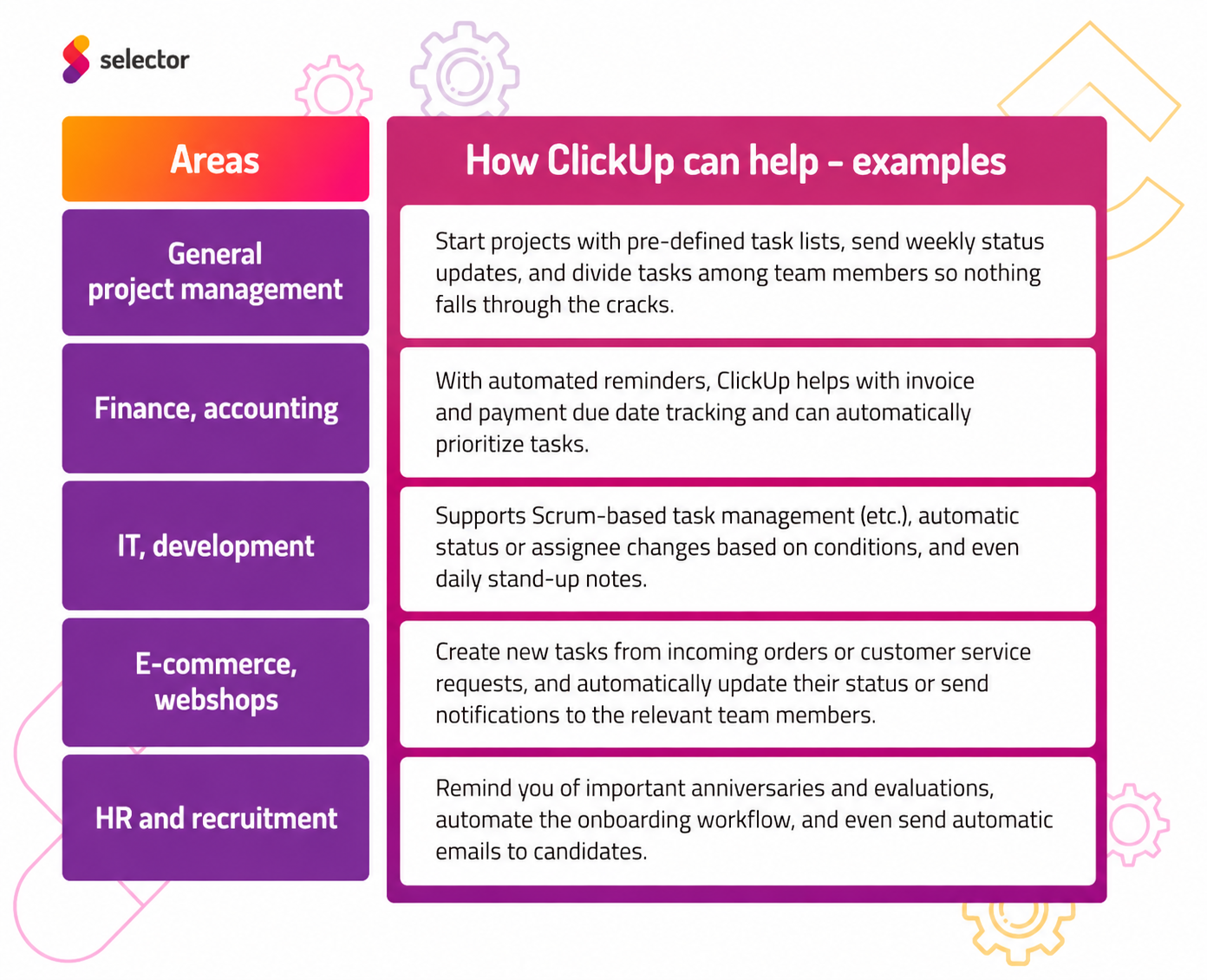
#m1-p#Here are a few more compelling examples of how and for what you can use ClickUp in various areas:##
How do automations work?
ClickUp automations operate on an “if this, then that” logic . This means that a pre-configured event (trigger) activates an automatic action.
The settings are easy to manage: you select what should trigger an automation (e.g., status change, new task creation, custom field update, etc.), then specify what should happen next (e.g., assign a responsible person, add a comment, set priority, etc.).

The magic begins when you can combine multiple conditions and assign multiple steps to a single automation. This allows you to create mini-workflows that literally run without you.
Tip: if you're using them for the first time, try out simple automations and test them in a separate list to see how they behave in a real workflow. You can edit, combine, or even deactivate them at any time later.
Where can you set up ClickUp automations?
If you feel that the current design of your ClickUp interface already meets your and your team's needs, all you have to do is navigate to the relevant workspace (be it a space, folder, or list) and click the Settings menu item Automations button, and you're ready to go!

10+1 Useful Automations for Busy Leaders and Project Managers
1. Automatic Task Assignment – Stop struggling with delegation!
Tasks keep flowing in, and you're constantly trying to keep track of them to ensure none are left unattended?
Set up an automation that assigns an assignee, or responsible person, to every task based on specific rules.
Here are a few examples:
- If a task in the "Contracts" list is created, gets the "contract" tag, or perhaps enters "contract in progress" status, it can automatically be assigned to the legal department.
- If a new hire onboarding tasks are recorded, several steps are automatically initiated for each sub-task: the new employee's IT access is sent to the IT department , the administration of the employment contract is handled by HR, while the preparation of the workstation is handled by the office manager.
- When a bug-reporting task is created in the „Bug tracking” list, and is tagged „mobile app”, it is automatically assigned to the mobile development team, and if „frontend” is the tag, then to the frontend developers.
#m1-p#In our examples, you can see how, for instance, every offer that reaches contract signing is automatically routed to the colleague responsible for contracts:##

2. Optimize your workflow with automations!
If processes constantly get stuck, tasks get lost, or colleagues point fingers at each other with excuses like "but they didn't tell me...", then automating (at least partially) individual workflows might be the solution.
Instead of the team passing tasks from hand to hand through various channels (email, post-its, carrier pigeon, or especially verbally), set up such automated workflows, where nothing gets lost or left unattended.
You can configure the standard process for when a specific type of task arrives (e.g., a new quote request, contract, or invoice), including processing, approval, signing, and payment, and determine who should be involved, at what stage, and how.
Whether you run an accounting firm or an IT team, this significantly eases process management – for example:
- a customer service ticket automatically changes to "In Progress" status when it's assigned to someone. (And as we mentioned above, you can automate the assignment itself!)
- as soon as a blog post's publication date arrives, its status updates to "Under Publication," and the Account Manager team becomes responsible (see our image below).
- a contract from the legal team or a colleague automatically comes to you and receives high priority as soon as it enters "Awaiting Signature" status.
- if an invoice enters "Paid" status, the accountant or the finance team or colleague is immediately notified about it in a comment.
You can set up all the above cases by following the example logic provided below:

Pro tip: To truly tailor this automation to your own processes, use custom statuses (e.g., awaiting approval, sent, accounted for, etc.) – these can be set within the settings of the specific folder or list.
3. Prioritize automatically based on predefined conditions!
Not all tasks are equally important – and understanding and clearly communicating this is a cornerstone of effective work. If you're frustrated that your team isn't working on what they should be, or important deadlines and clients are often overlooked, automatically set priorities can ensure that the most critical tasks are completed first.
Here are a few more examples where automatically set priorities can be beneficial:
- If a key client's new task (incoming request, order, invoice, etc.) is created in their folder or list, it can automatically receive the highest priority.
- The opposite is also true, of course: for instance, if a task's deadline is still far off (more than X days away), you can automatically tag it and set it as low priority for now. Naturally, it's also worth configuring when it should advance to medium, then high priority as the deadline approaches.
- You can also prioritize based on whether an incoming order or quote request amount exceeds X value.
And here's our example: two days before a task's deadline, it automatically switches to "high priority" status, ensuring the assigned colleague sees it's time to address it.
This makes things easier for everyone: as a leader, you won't have to micromanage priorities, and the task owner will have a clearer understanding of which tasks to focus on each day.

4. Are tasks regularly forgotten? Send automatic reminders as deadlines approach!
We probably don't need to explain to any leader the gut-wrenching feeling caused by tasks that are drifting, getting lost, or falling behind (even unknowingly), especially when it comes to important projects or key clients.
While constant checking and micromanaging "poking" of the team is stereotypically "bad boss" behavior, a few thoughtful, timely reminders can save both you and your team a lot of trouble.
With ClickUp automations, you can set it up so that, for example, if a task's deadline is approaching, a message automatically appears, and the assigned person receives a notification:

Useful, right? This way, your team won't lose focus during daily work, and you can sleep more soundly (as long as you don't overdo the use of automatic reminders as a leader, which we don't recommend to anyone... :)).
#promobox-newsletter###
5. Automatically set or update deadlines!
The to-do list is usually endless – but it can seem even more endless if it's not clear when each task needs to be completed.
Automate the setting and updating of deadlines, so ClickUp's system will take care of ensuring that every task immediately gets a deadline.
In the image below, we've illustrated this with a fictional example where the system not only sets but also updates deadlines for us. Here are the steps:
- If we create a new task due to a new inquiry, with the first automation we can immediately assign a +3 day deadline, and the system even writes a reminder comment, including the set deadline. (By the way, you can also specify the content of many other fields here – assignee, start date, custom fields.)

- Then, let's say the admin department is busy and unfortunately doesn't respond to the inquiry in time. This is where the second automation: if the task's deadline has passed but its status is not yet "Sent," then another action is triggered, which resets the deadline to the current day and immediately notifies the responsible person or department.

This solution works particularly well for all recurring processes where response time is crucial – for example, customer service tickets, onboarding steps, or quote requests.
6. Streamline project initiation with automatically applied templates!
Does your team have to start every project with the same steps? Do you constantly find yourselves copying the same tasks? Forget manual repetitions!
Set up an automation that automatically assigns a pre-made template when a new task is created. This way, the necessary subtasks, deadlines, assignees, and other details are immediately entered – in one click and a few seconds, instead of nerve-wracking clicking and long minutes.
Here are some areas where an automatically applied ClickUp template can significantly speed up and make work more efficient:
- A digital marketing agency (like us) can automatically apply the Google Ads Search campaign launch process template, if a new task is created, for example, in the “Campaigns” list. (The activation conditions can, of course, be further narrowed down.)
- A software development team , when developing a new feature, can automatically apply a “Sprint preparation” template, which includes analysis, specification, development, testing, and code review subtasks – along with assignees and deadlines.
- A HR department , when opening a new position, can automatically assign the recruitment process template, which includes writing the job advertisement, posting the ad, scheduling interviews, and preparing for onboarding.
- A accounting firm and after onboarding a new client you can automatically assign the onboarding template, which guides the employee through the steps of data entry, contract sending, setting permissions, and scheduling the first consultation.
We highly recommend the automatic use of templates for recurring workflows such as product launches, onboarding, event organization, campaign initiation - and the list goes on.

+1 bonus tip: combine the individual automations!
ClickUp's true power is revealed when automations are not used individually, but linked together. In our examples above, you may have noticed that we almost exclusively showed cases where not just one, but multiple triggers or actions were part of an automation.
We definitely recommend setting up automations in the long run that allow you to kill two birds with one stone.
Here's an example of how you can truly leverage the arsenal of automations (though there are still many untapped possibilities) and combine the above into a single workflow:
- If a new task is created in the "Contracting" list, it automatically receives the "contract" tag and the associated checklist as a template, then assign the legal department or responsible person, change the status to "With Legal Department", and give it medium priority.
- Subsequently, for the same list, you can set it so that a notification or reminder is sent to you and/or the task owner about the approaching deadline, or that ClickUp modifies the task deadline and its priorityif the deadline has passed but it hasn't moved to the appropriate status.
- And if the task (contract) has moved to another status, you can automatically assign the next responsible person, whom the system can notify in a comment about details pulled from certain fields of the task (amounts, dates, contact person's availability, etc.), and a by inserting a checklist, you can outline their tasks.
- Once this step is complete, you can use another similar automation to assign the next responsible person and their tasks, and even specify that a notification is sent when the process is successfully completed (the contract was signed, the invoice paid, the bug fixed…).
This way, you can manage countless different steps and minor administrative nuances with a single trigger. The bonus? You'll experience fewer errors, fewer lost or abandoned tasks – and have more time for actual leadership work.
Summary
As you've seen, ClickUp's automations can bring significant changes to your team's operations with just a few simple settings. You won't have to remember everything or manually repeat the same steps – simply set it up correctly once, and the system will handle the routine tasks for you. This not only frees up time but also helps your team work consistently, transparently, and efficiently.
If you enjoyed this article and would like to try ClickUp automations with your own team, start small, but remember to think systematically! Building on a well-thought-out structure from the beginning offers a huge advantage in the long run – and we're happy to assist you as consultants in this. If you need more complex automations, perhaps involving external software (such as channeling emails or website forms into ClickUp), we'd also be delighted to provide ideas!
#promobox-en#Interested in how ClickUp can further assist your daily work? Reach out to us; as certified ClickUp consultants, we'd be happy to help!##






.jpg)
.png)