
As a website owner, you can be sure that if there's one thing that will repeatedly make you tear your hair out, it's page speed. Let's say you already have a beautiful website you've worked hard on, uploaded great content, and polished and developed it so much that, in the end, it became quite slow.
But wait, how does this work then? The larger and more complex a website is, the more critical its speed becomes? Not necessarily, but let's see what you need to pay attention to, what you can adjust yourself, and when it's best to entrust the work to a developer!
.png)
Why is it important for your site to be fast?
In our fast-paced world, every second counts. A slow-loading website not only wastes the user's time but literally takes money out of your pocket. This is especially true if your site appears in ads, where every single click comes at a significant cost.
Users are increasingly impatient: if a page doesn't load within a few seconds, they immediately move on. This behavior increases the "bounce rate" and reduces conversions. The good news is that, in practice, your site really has to be quite slow for users to notice and not wait for it to load.
We want our site to please not only our visitors but also search engines. The search giant Google indicated years ago that loading time, especially on mobile, can affect rankings, but also emphasized that this only becomes a negative factor if the site is exceptionally slow. So, a page loading in 2.8 seconds won't single-handedly ruin your SEO, but if nothing happens for 8-10 seconds, that could be a serious problem. Let's see what Google Search Central's documentation, updated on February 4, 2025, says about this:
“Google's core ranking systems prioritize content that offers a good page experience. Website owners should not focus on just one or two page experience aspects, but rather ensure an overall excellent page experience across many factors."
This is merely a rather vague guideline, yet we can rightly believe that a website optimized for speed not only provides a better user experience but can also rank higher in search results.
What is PageSpeed Insights and what is it good for?
How and with what can we check our site's speed? It's clear that it's not enough to just sit back, browse our site, and happily note that we didn't have to go out for coffee while the desired page loaded today. Of course, unfortunately, that happens too, but the question of speed is much more complex than that, and it's something that during website development often doesn't receive enough attention.
Google doesn't let website owners down on this issue either; with its developed PageSpeed Insights tool, we can get a comprehensive picture of our website's performance in both desktop and mobile views.
The PSI report works with two main data sources:
- Lab Data - Measurements under simulated conditions, with fixed bandwidth and device, thus providing consistent and repeatable results.
- Field Data - Generated based on anonymous data from Google Chrome users, and derived from real-world environments: based on various devices, locations, and network conditions.
This dual perspective allows you to see not only how the site performs in an "ideal environment" but also what experience it provides to your visitors in real life.
Essential Performance Metrics You Need to Know
Next, we receive a detailed report and an initially rather intimidating diagnosis with recommendations, but how do we interpret these in a nutshell?
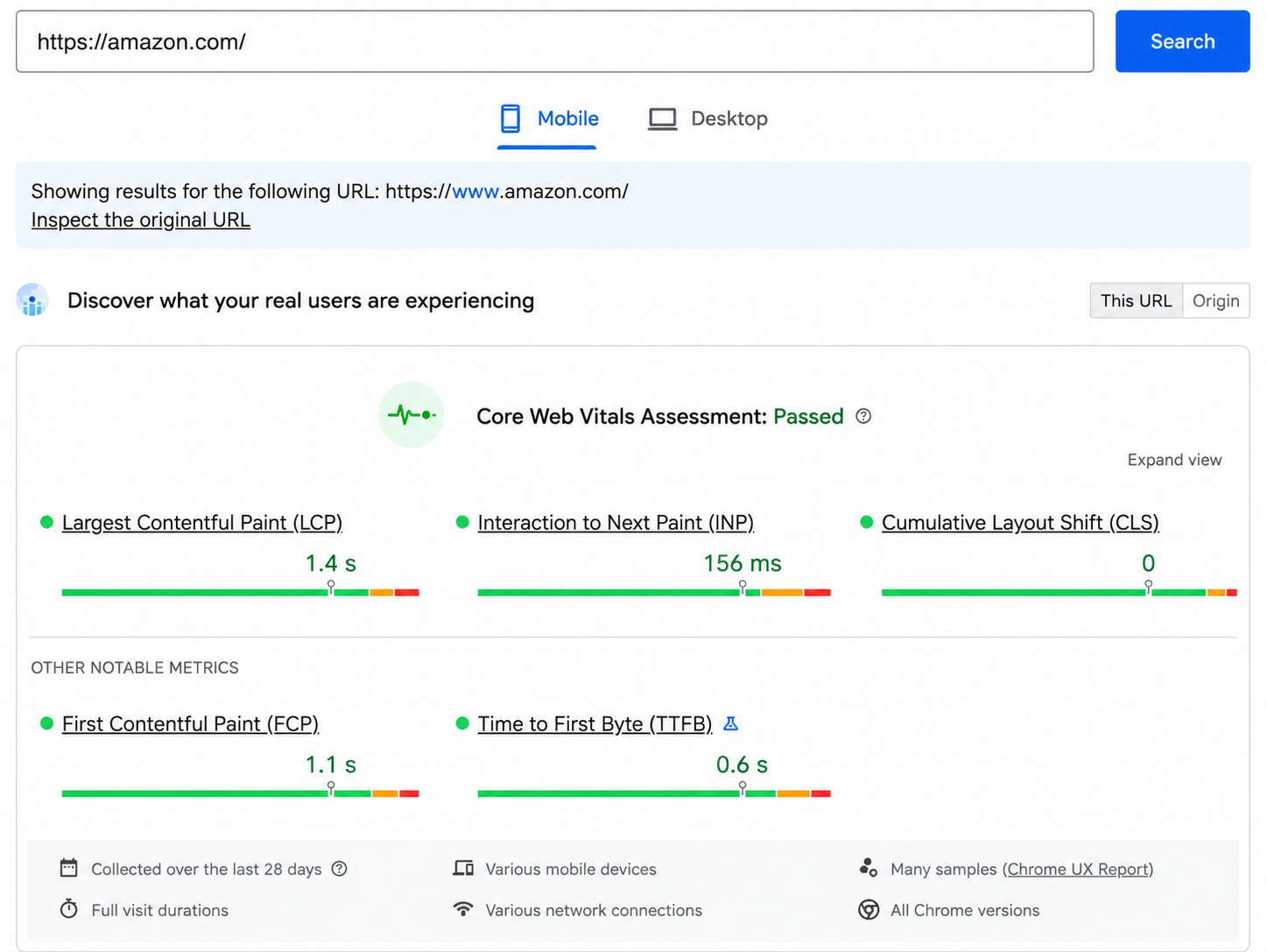
PageSpeed Insights monitors numerous technical metrics, but the most important ones are the so-called Core Web Vitals metrics. What are they?
- LCP (Largest Contentful Paint): measures how long it takes for the largest content element (e.g., image, main title) to load on the screen. Ideally, this should be less than 2.5 seconds.
- INP (Interaction to Next Paint): examines the time elapsed between a user interaction (e.g., click) and the visual change that appears in response. Under 200 ms is excellent; above 500 ms indicates a serious problem.
- CLS (Cumulative Layout Shift): this indicates how stable the content is during loading. If page elements jump around, it degrades the user experience. The ideal value is below 0.1.
Additional relevant metrics:
- FCP (First Contentful Paint) – first contentful paint: when anything first appears on the screen.
- TTFB (Time to First Byte) – server response time: how quickly the browser receives feedback.
- Speed Index, TBT (Total Blocking Time), Time to Interactive – these refine the picture of the page's response time and usability.
To help, the results are defined by three color codes:
- Green – excellent! The page performance is good.
- Orange – there's room for improvement, but it's already acceptable.
- Red – there are serious problems; the page is slow or unstable.

How to run the analysis and interpret the results?
- It's completely free to use, and all you have to do is enter your page's URL on the https://pagespeed.web.dev website, and in a few seconds, you'll receive a detailed report.

- Wait a few seconds – the system will run the tests separately for mobile and desktop.
- You can see the overall score (0-100) for the selected device (desktop or mobile), highlighted with the appropriate color, and the recommendations below it.
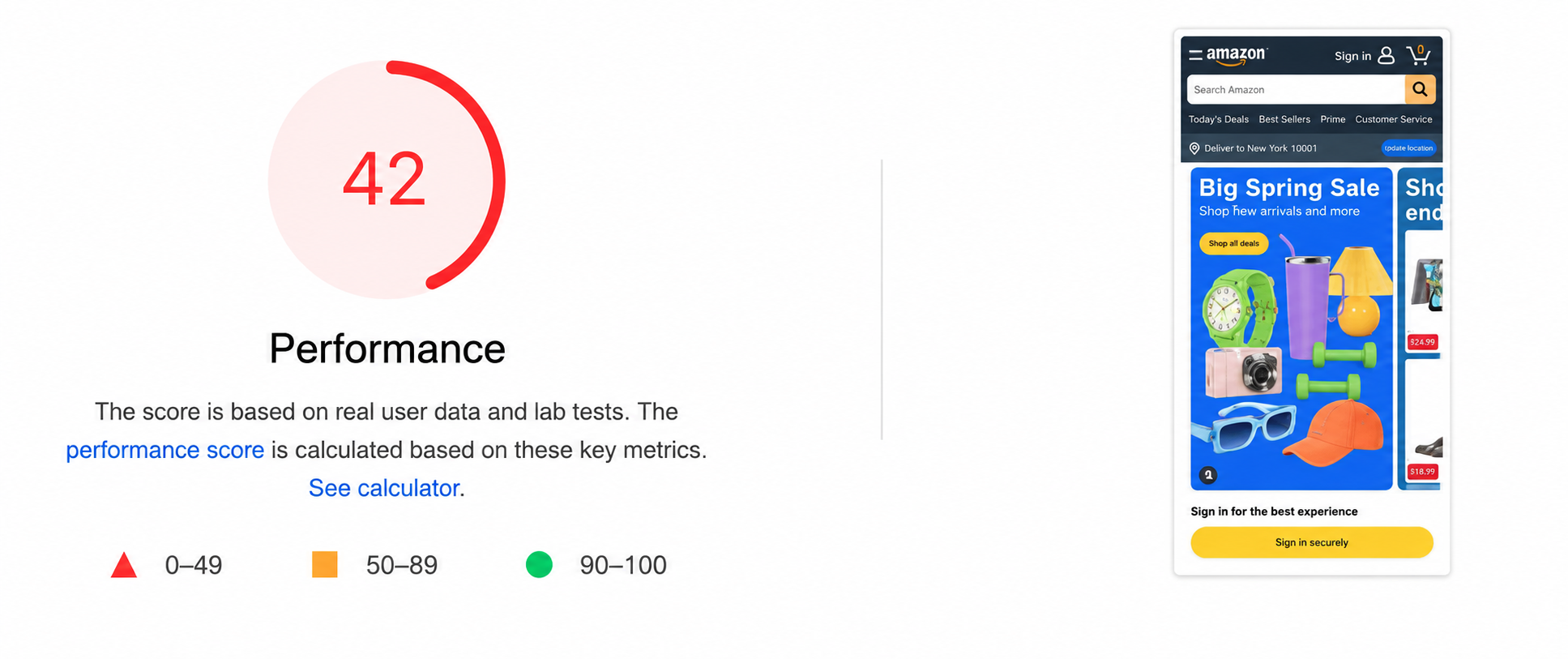
4. Scroll down and check the opportunities ("Opportunities") and the diagnostic details ("Diagnostics") – this is where you'll find exactly what needs improving (e.g., image compression, code optimization, removing unnecessary JavaScript, etc.).
#promobox-newsletter###
How to improve your site based on PageSpeed Insights recommendations?
PageSpeed Insights not only flags errors but also provides specific, technical recommendations. Many of these can be implemented on your own, while others – and these are often the majority – require developer expertise. So, after running the analysis and processing the results, the next step is to start fixing the identified issues.
Image Optimization: The Simplest and Most Impactful Improvement
"Overly large images" are a common culprit. Most enthusiastic, but novice, website owners almost certainly "go wrong" here, uploading stunning – and often oversized – images to their sites. While a high-resolution photo can be visually impressive, failing to optimize it will drastically slow down your entire page.
What can you do?
- Use WebP or AVIF format; these are much smaller than traditional JPG or PNG.
- Use a image compression tool (e.g., TinyPNG, Squoosh).
- If possible, enable lazy loading feature – this way, images only load when the user actually scrolls to them.
There are plugins available for several CMS platforms that help with optimization, including reducing image sizes. Without these, images must be optimized individually using an image compression application, then re-uploaded.
Eliminating unnecessary code: Optimizing CSS and JS
And now we've reached a point that's quite difficult to solve without developer knowledge, but there are still a few things you can do yourself.
Most modern websites are rich in JavaScript and CSS files – often loading plugins and libraries that are never used. Don't overload your site with plugins. This is especially true for WordPress. While extensions are often convenient, each plugin can bring additional CSS and JS, which slows down the site.
So, review your plugins; only keep the ones you truly need and delete those you don't use. By doing this, you've likely already done a lot to speed up your site. If you have enough patience, you can re-run the PageSpeed Insights tool on your site after each fix, so ideally, you'll immediately see how much the changes have helped.
Reducing server response time
The TTFB (Time to First Byte) value is one of the most important indicators of server performance. If it's too long, Google (and your users) will become impatient. It might seem complicated, but you can do a lot to improve this area, primarily by contacting your hosting provider.
What can you do?
- Choose fast, reliable web hosting or a VPS.
- Use cache solutions (e.g., WP Super Cache, LiteSpeed Cache).
- If possible, activate the CDN service (e.g., Cloudflare) to bring the content physically closer to your visitors.
It might seem obvious, but many people don't realize that PageSpeed Insights always only measures the URL you enter, for example, if you entered your homepage URL, it will only measure the homepage. Therefore, it's advisable to perform the analysis on your most important URLs, landing pages, and key category pages. For instance, your homepage might be packed with images and dynamic elements that look great but make the page incredibly slow. Despite this, other pages on your site might still have adequate or even excellent scores. If your website has many pages, it's worth focusing primarily on your most important, high-traffic pages when working on page speed improvements.
Does your CMS matter? Absolutely!
When you aim to optimize your website's performance according to PageSpeed Insights recommendations, the content management system (CMS) your site is built on is a crucial factor. For instance, if you use an open-source system like WordPress, Joomla, or Drupal, numerous optimization options are available even without developer knowledge – such as caching plugins, image compression plugins, or automatic code minimizers. With these, you can achieve a noticeable improvement in your PSI score with just a few clicks.
WordPress: Optimizing the Most Popular CMS for Page Speed
Optimizing WordPress sites is relatively straightforward, thanks to the abundance of well-established plugins available.
Recommended plugins:
- WP Rocket / LiteSpeed Cache – performance optimization and cache management.
- ShortPixel / Smush – automatic image compression.
- Asset CleanUp – disables unused CSS/JS files on specific pages.
In contrast, with a custom-developed website – especially if you don't understand source code – it's much harder to make independent changes. For such sites, optimizing CSS, JavaScript, converting images, or reducing server-side response time almost always requires developer involvement, making optimization not only technically more complex but also more time-consuming.
When to Seek Developer Assistance?
Sometimes the problems run deeper than they initially appear. In such cases, simply removing a few plugins or optimizing images isn't enough; genuine developer intervention is required. It's advisable to consult professionals if:
- The score doesn't improve even after the fixes.
- The page falls apart visually or functionally.
- You'd rather focus on the business side and outsource optimization.
Alright, but this all sounds quite complicated, so how much should you really bother with it? Like most answers in the field of SEO, this one also starts with "it depends..."
PageSpeed Insights can be a great tool, but it's important to know: not all of its recommendations can be solved with a single click. We've shown what you can easily do yourself on your own site – for example, compressing images, disabling unnecessary plugins, setting up caching, or using modern image formats. These fixes don't require you to be a developer; they just need a bit of attention and time. However, many other suggestions – such as script management, embedding critical CSS, or server-side optimization – demand more serious technical expertise. If you don't have access to the source code or aren't comfortable with technical details, then developer support will be beneficial for these. So yes, you can handle several tasks on your own, but if you truly want to unlock the tool's full potential, it helps to have someone on hand who understands code.
Conclusion
Page speed is not just a technical SEO metric, but the user experience foundation, so it needs to be good enough. Users shouldn't have to wait minutes for a page to load; they should be able to browse the site quickly. A fast page reduces bounce rate, increases time spent on the page, and boosts conversions – all factors that Google indirectly considers.
However, optimizing for every millisecond won't dramatically impact your search engine optimization, so it's not worth going to extremes, as there are much stronger ranking factors as well. However, it's not worth neglecting, especially if your competitors are already actively optimizing.
#promobox-szolg-seo-en#Want to maximize your website's potential with the help of our experienced team?##
-min.png)





.jpg)
.png)